Split a restaurant bill without passing one phone around the table
How to Split a Restaurant Receipt by Item with a QR Code
Scan the bill with PartaBill, let each diner select their items by link or QR, then allocate tax and tip in proportion to what they ordered.
See PartaBill in action
Video demonstration
Split a restaurant bill with a QR code in 45 seconds
Read the transcript
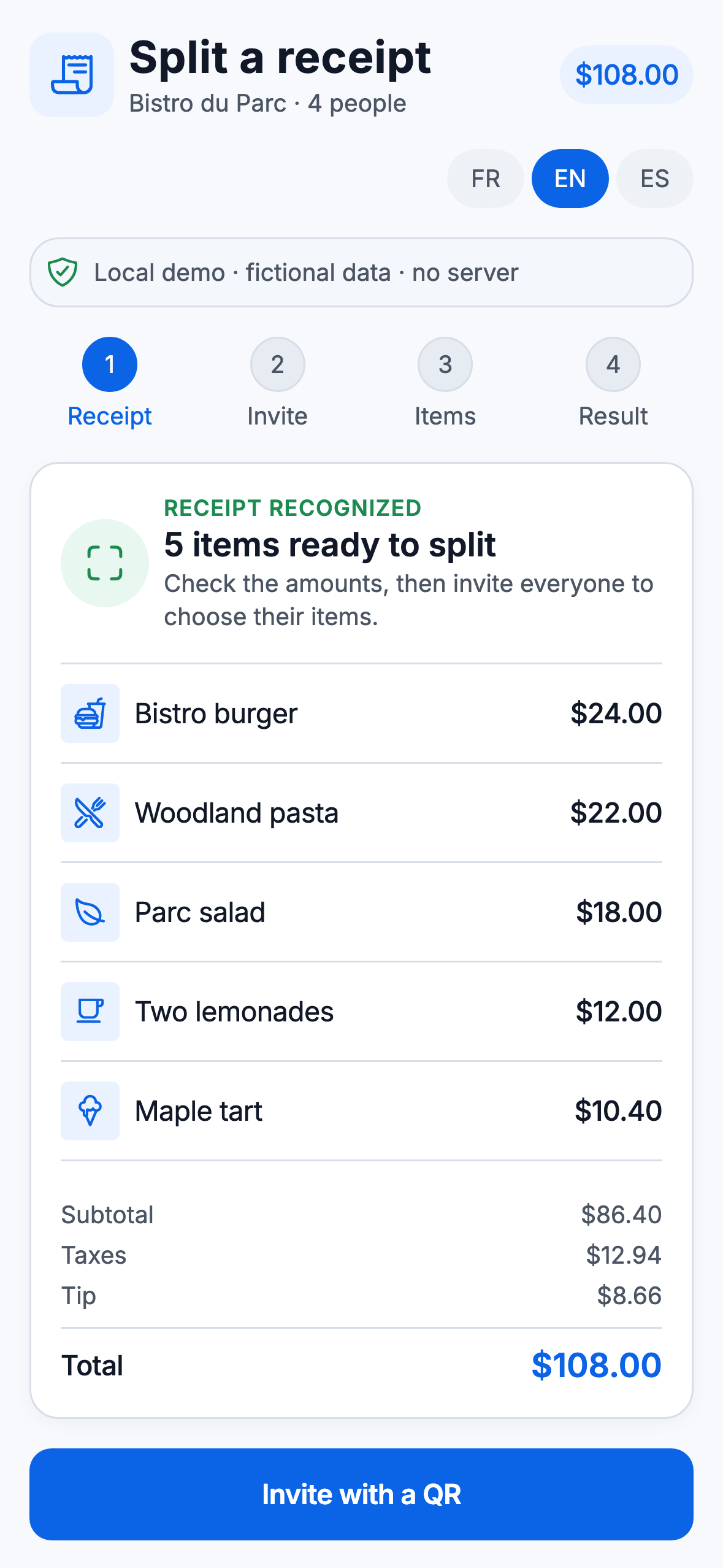
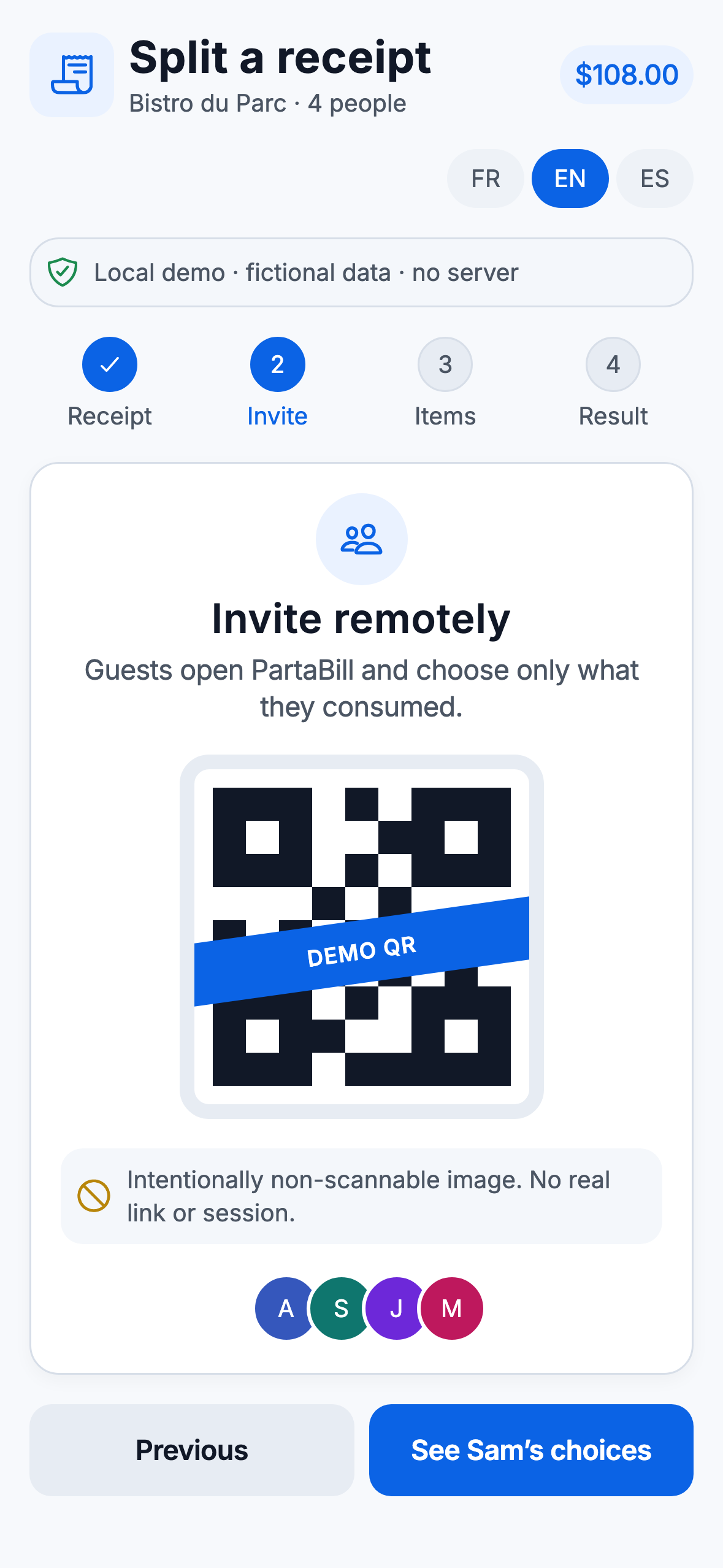
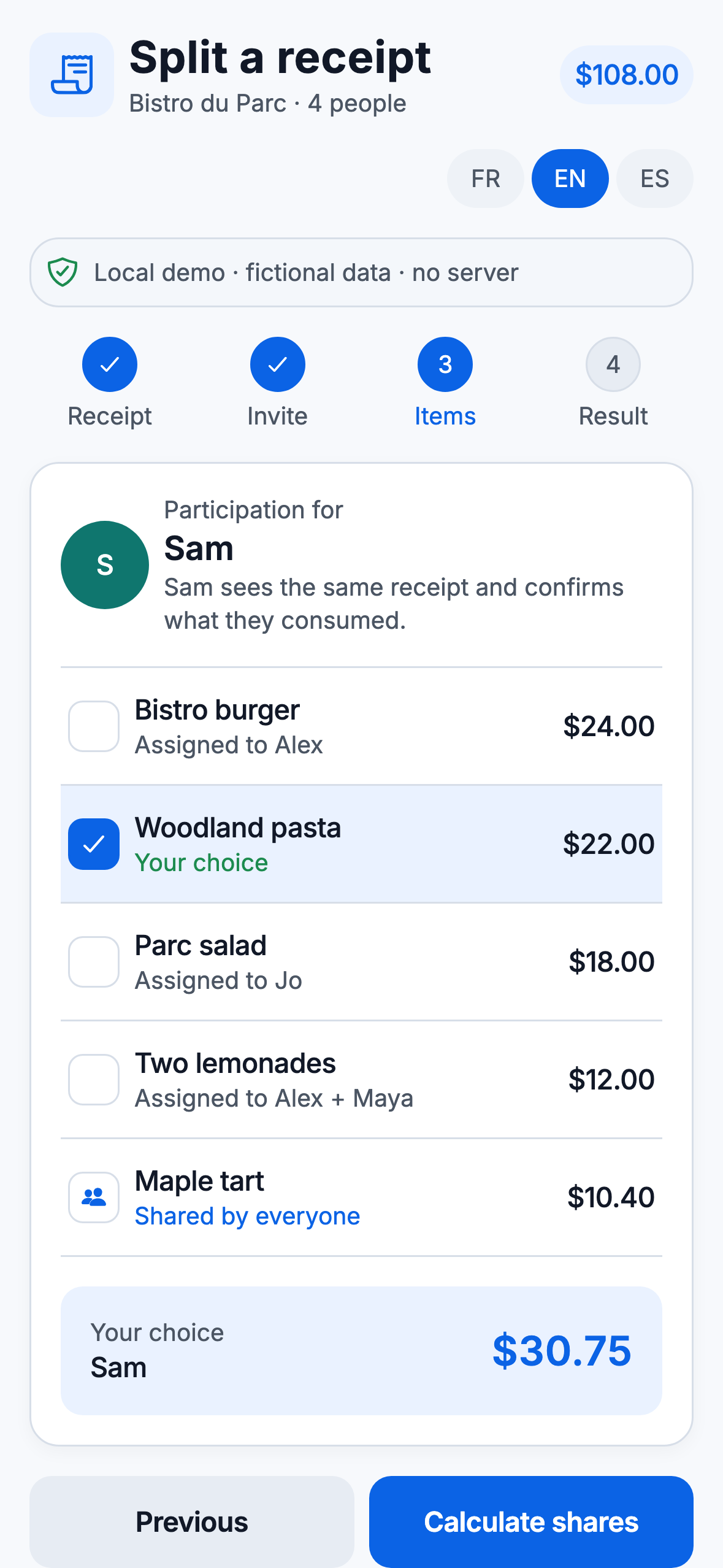
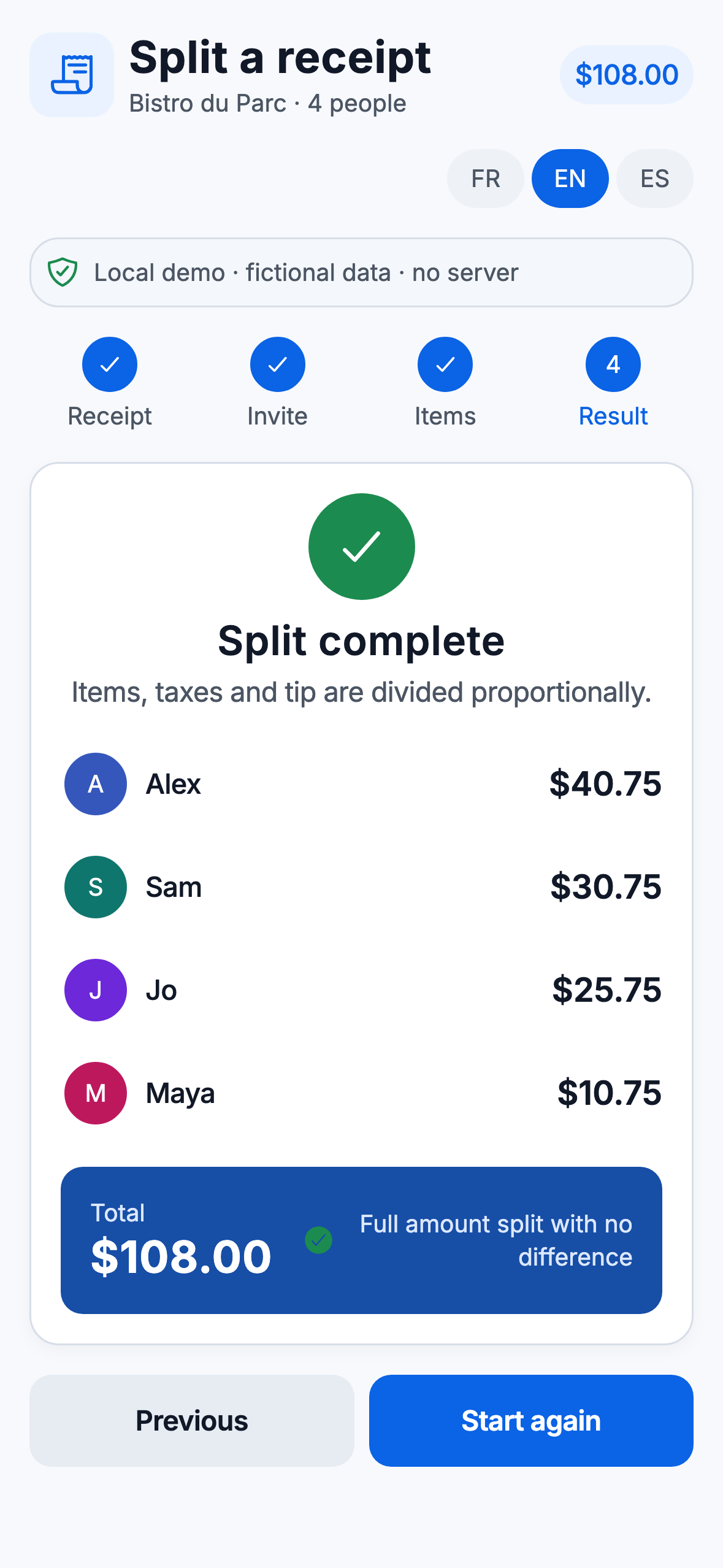
A fictional bill for four people appears with five recognized items. The host reviews the amounts, then shows a deliberately unusable demonstration QR. Sam chooses their items and sees the item shared by everyone. PartaBill then allocates the items, tax and tip, and displays each person’s share.
Annotated screenshots
The 20-second answer
One person scans the bill in the PartaBill mobile app and chooses Split together. They then show a QR code or send a link. Each diner opens the split on their phone, enters their first name if needed, and checks off what they ordered. PartaBill calculates their share of the items, tax, and tip. The host reviews the result, then saves the expense to the group or generates a PDF invoice for a split without a group.
The key distinction: manually splitting an expense by item is free. The complete flow in this guide—Smart Scan, link or QR sharing, collaborative item selection, and proportional tax and tip allocation—requires PartaBill Plus for the person starting the split. Invited diners can participate without an account.
Who this guide is for
This flow is especially useful for:
- a table where everyone ordered different dishes;
- a meal with shared items, such as an appetizer or bottle;
- a group trip where the person paying wants to keep clear balances;
- diners who do not want to install an app or create an account;
- a host who would rather assign everyone’s items themselves than share the link.
It is less suitable when the host only has a computer, the internet connection is unreliable, or the receipt is difficult to read. The Smart Scan that creates the collaborative session currently starts in the PartaBill app on iOS or Android and requires an internet connection.
Free or Plus: what is included
| Feature | Access |
|---|---|
| Create a group and add an expense | Free |
| Manually split an expense item by item | Free |
| Basic on-device OCR for the amount, merchant, and date on mobile | Free |
| Attach a receipt photo to an expense | PartaBill Plus |
| Automatically read receipt lines and prices with Smart Scan | PartaBill Plus |
| Start “Split together” and invite by link or QR | PartaBill Plus |
| Allocate tax and tip proportionally | PartaBill Plus |
| Join from the shared link without an account | Included in a split started with Plus |
PartaBill does not connect to your bank and does not transfer money. It calculates and records the split; the people involved complete the actual payment using their preferred method.
Demo: dinner for four
Imagine a fictional bill for Alex, Sam, Jo, and Maya. It has five lines: a burger, pasta, a salad, two lemonades shared by Alex and Maya, and a maple tart shared by everyone because nobody claims it. The host reviews the amounts and displays the demonstration QR; the demo then moves to Sam’s view, where they confirm the pasta.
The demo follows four simple moments:
- Smart Scan turns the receipt lines into items;
- the host displays the QR code or sends the link;
- each person checks off their dishes, and several people can select the same shared item;
- the final screen shows each person’s share before the expense is saved.
All people and amounts shown in this demo are fictional. Recognition results for a real receipt depend on its clarity, format, and lighting.
Step-by-step instructions
1. Start the split from a phone
In PartaBill on iOS or Android, open New expense, then Scan a receipt and Split together. Choose an existing group if you want to update its balances. Choose No group — between guests if you only want to calculate the shares and produce a PDF invoice.
The person starting this flow needs PartaBill Plus. Smart Scan and live synchronization require an internet connection.
2. Photograph the receipt and review the scan
Take a clear, well-framed photo without fingers covering any amounts, or choose an image that is already saved. PartaBill attempts to recognize the merchant, each item, its price, and the tax.
Before sharing, always compare the items and amounts with the original receipt. If the recognized total does not match the items and tax, PartaBill displays a warning. Do not finalize until the result matches the bill; take another photo if needed.
3. Send the link or show the QR code
On the Split together screen, use Share link to send it in a message or QR code to show it at the table. The link opens the associated Web split. Someone without an account can enter their first name and join as a guest.
Sharing is optional. The host can also add people without accounts, select a name, and assign their items themselves.
4. Everyone checks off their items
Each diner taps the items they ordered. For a shared dish, everyone involved selects the same item, and its price is divided among them. An item that no one selects is shared among everyone, so review any remaining lines before finishing.
Selections appear as they happen. Once a diner is finished, they tap I’m done. The host can see who has finished and can still assign or review items.
5. Add the tip and review the shares
The host chooses no tip, one of the suggested percentages, or a custom percentage. In this flow, the tip is calculated on the subtotal before tax. PartaBill then allocates tax and tip in proportion to the items assigned to each person.
Review Each person’s share before continuing. It shows the amount calculated for each member, guest, or named person without an account.
6. Finish based on your situation
For a group split, Save to the group creates the expense and updates the PartaBill balances. Without a group, Generate PDF invoice creates an itemized record of the shares so everyone can settle on the spot; it does not create group balances.
PartaBill calculates what each person owes, but it does not collect or send the payment.
Mini-demo transcript
0 to 11.25 seconds — The receipt. A fictional bill for four people appears with five recognized items. PartaBill reminds the host to review every amount before continuing.
11.25 to 22.50 seconds — The invitation. The host shows a deliberately unusable demonstration QR. In PartaBill, guests normally join the split by link or QR.
22.50 to 33.75 seconds — The selection. Sam chooses their items and sees the item shared by everyone. A shared item can be split among several diners.
33.75 to 45 seconds — The result. PartaBill allocates the items, tax and tip, then displays each person’s calculated share and the $108.00 total.
This transcript contains all the useful information conveyed by the demo. The video is silent, starts only when selected, and includes English captions.
Frequently asked questions
Does everyone need to install PartaBill?
No. The host shares a link or QR code. Invited diners can open the split in their browser and participate without an account. They can later choose to keep their expense in PartaBill.
Can several people share the same dish?
Yes. Everyone involved selects the shared item. PartaBill divides its price among those people, then assigns their proportional share of tax and tip.
What happens if no one selects an item?
An unchecked item is shared among everyone. The host should therefore review all remaining items before finishing.
Can I use this method for free?
Manual item-by-item splitting is free. Reading the receipt lines, creating a collaborative session by link or QR, and proportionally allocating tax and tip are PartaBill Plus features.
Does it work offline?
Not for the complete flow in this guide. Smart Scan and live collaboration require a connection. The basic local scan can read basic receipt information offline on a compatible device, but it does not replace collaborative QR splitting.
Can I start the scan from the Web app?
No. Receipt scanning currently starts in the mobile app on iOS or Android. The Web is used, among other things, by diners joining the session through the link or QR code.
What if a line or price is read incorrectly?
Compare the screen with the paper receipt. PartaBill also flags some total mismatches. If the data is inaccurate, do not finalize: take a clearer photo or use a manual split.
What happens to the receipt photo?
For Smart Scan, the photo is securely sent to the processing service to extract the requested information. It is kept as an attached receipt only if you choose to save it. Read the PartaBill Privacy Policy for details.
Evidence, platforms, and limitations
This guide was verified on August 11, 2026, using the current PartaBill flow, its public feature catalogue, and its implementation. Starting a collaborative scan is available in the iOS and Android apps. Participation links open the split on the Web and accept guests without an account.
The images and video use a local demonstration built with current PartaBill components, entirely fictional data, and a deliberately unusable QR code. They illustrate the flow without opening any real account, expense, or session.
Smart Scan reduces data entry, but it cannot guarantee perfect recognition of every receipt format. The host remains responsible for checking the items, tax, tip, and total before finishing. The session requires a connection, and PartaBill does not transfer money.
To confirm current availability and access for each feature, see Split a bill from a receipt and the complete PartaBill feature catalogue.
Try it with your next bill
At your next group meal, open PartaBill on your phone, choose Scan a receipt, then Split together. Show the QR code at the table and let everyone select their dishes while the original bill is still in front of you.
Open PartaBill and split a receipt
Related guides
- PartaBill, Splitwise, Tricount or Settle Up: Which App Should You Choose in 2026?
- Explore all receipt-splitting features
- Coming soon: organize a group trip with its budget, itinerary, and packing list.
- Coming soon: manage rent, bills, groceries, and chores with roommates.
About the author
Denis Turbide
creator of PartaBill
Revision history
- — Initial publication
Sources and verification
- PartaBill — Split a bill by item from a receipt Facts verified: August 11, 2026
- Complete PartaBill feature catalogue Facts verified: August 11, 2026
- PartaBill Privacy Policy — receipt scanning Facts verified: August 11, 2026
Try PartaBill with your own group
Create a group, add an expense, and see what PartaBill can simplify for you.