Create and organize an event without scattering invitations, responses, responsibilities and expenses across different tools
How to Create and Plan an Event: A Complete Guide
Create and organize an event with PartaBill: date, invitations, RSVPs, schedule, tasks, who brings what, carpooling and shared expenses.
See PartaBill in action
Video demonstration
Create and plan an event with PartaBill in 45 seconds
Read the transcript
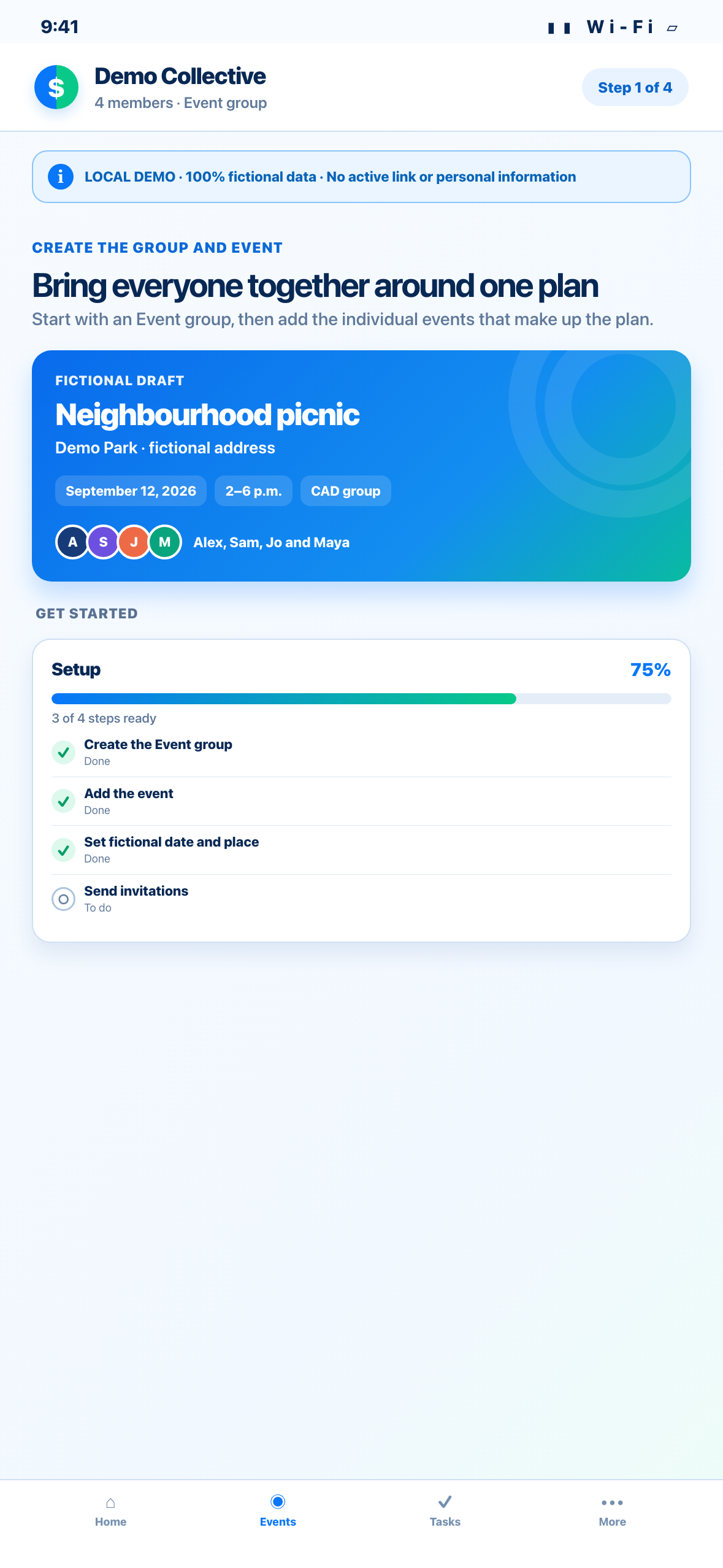
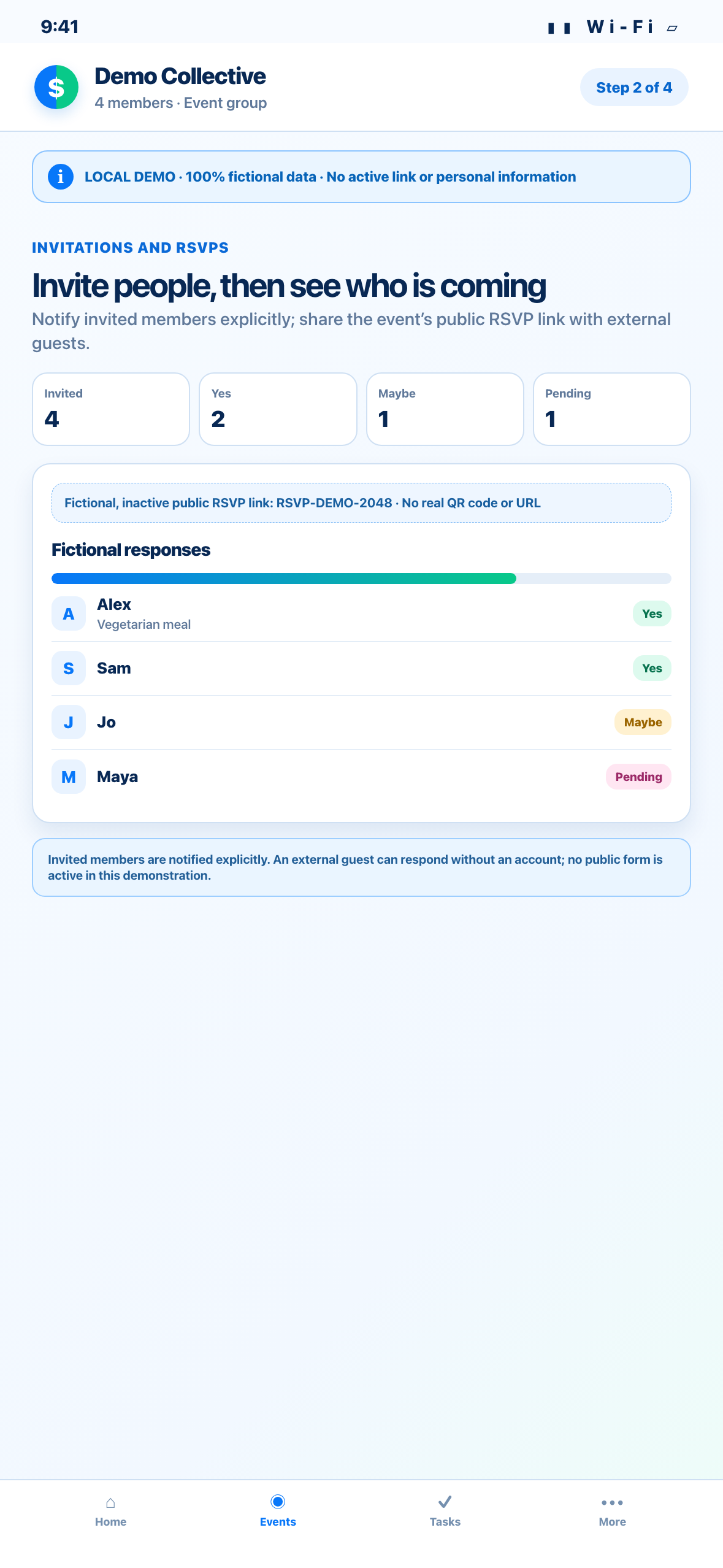
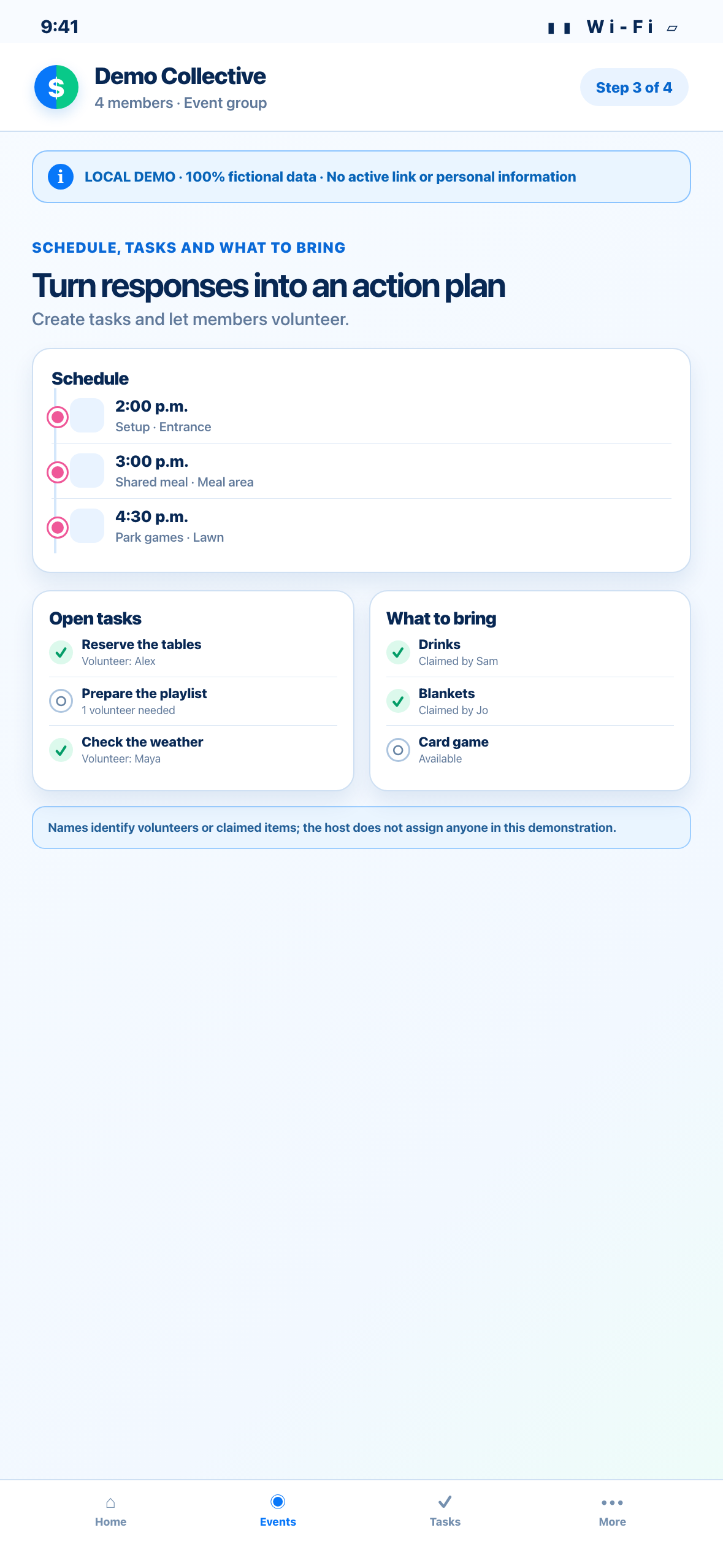
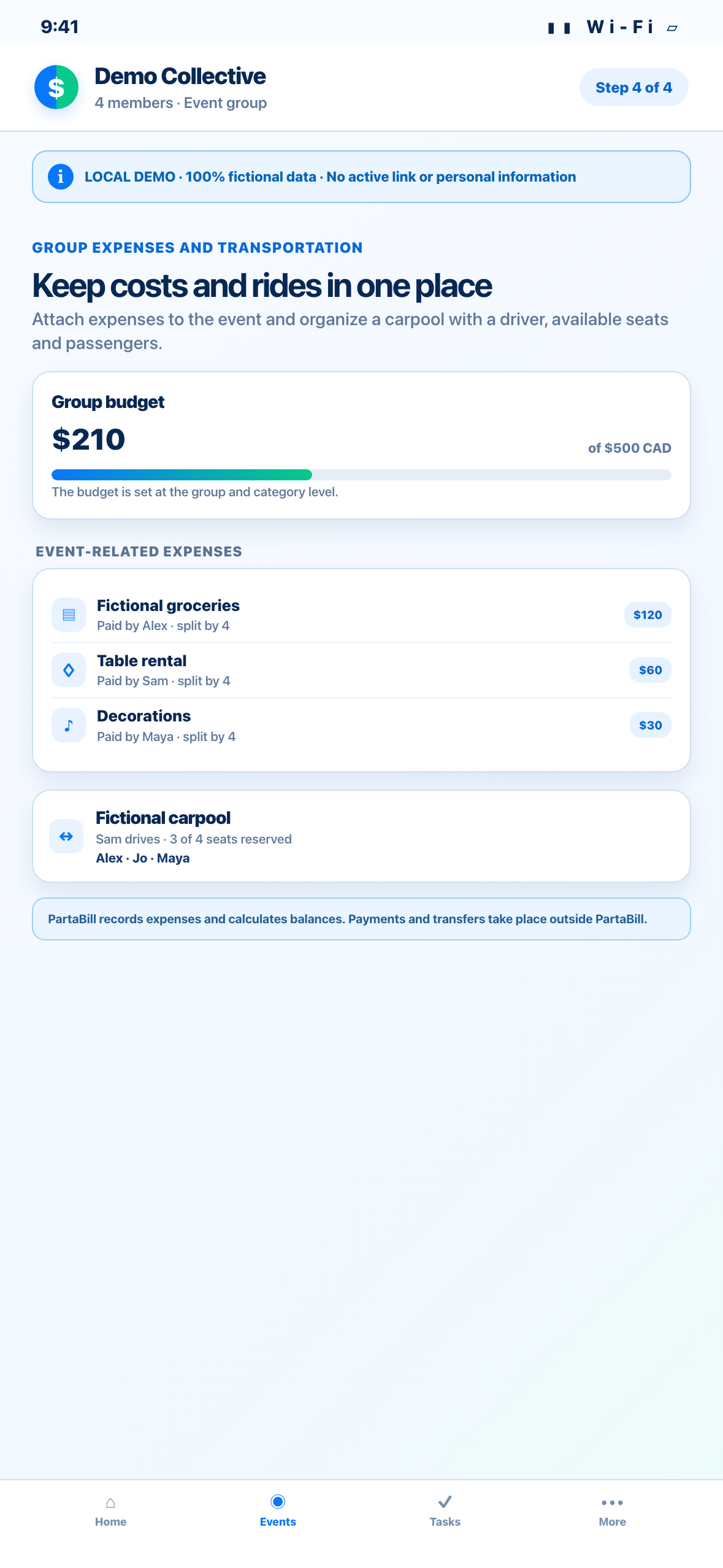
A fictional group creates an event with its date, venue and visibility. It then sends invitations and tracks yes, maybe and no responses. The schedule shows the flow, while tasks and the who-brings-what list show volunteer needs and claimed items. Finally, the group adds carpool rides and expenses linked to the event while keeping real bookings and payments outside PartaBill.
Annotated screenshots
The 20-second answer
Start by defining the goal, audience, date, venue, maximum budget and the person responsible for each final decision. Then create a permanent Event group in PartaBill and add the gathering: a dinner, birthday, tournament, fundraiser, neighbourhood activity or team outing. Set its visibility, name the hosts, send the invitations and follow the RSVPs while keeping the schedule, volunteer needs and claimed contributions visible.
PartaBill suits groups that organize recurring gatherings and want one shared history. It connects coordination with actual expenses but does not book venues, issue permits, sell tickets, collect funds or transfer money.
The screenshots and video show a fictional party created without an account, real email address, active public link or personal information.
Event group or single event: what is the difference?
The Event group is the long-term headquarters: members, decisions, expenses and contextual tools can remain useful from year to year. Documents can hold permitted files; Budgets can track the group’s monthly category caps. Each event has its own date, visibility, hosts, invitees, RSVPs, schedule, tasks, who-brings-what list and linked expenses.
This avoids rebuilding the group for every dinner while separating a September tournament’s responses from a December party’s. For one small gathering, use the same process; if the group meets again, create a new event in its existing headquarters.
Free, Plus and external guests
The core Event module is free. For an Event group created on or after August 11, 2026, up to four people registered in the group, including the owner, can join for free. No-account placeholder profiles added as members also count; only virtual kitties are excluded. Adding a fifth person requires the owner to have PartaBill Plus. Guests who respond only through the public link remain outside the group and cannot access its private finances, documents or conversations.
| Need | Access verified August 14, 2026 |
|---|---|
| Manually create an Event group and events inside it | Free |
| New Event group with up to four people registered in the group | Free |
| Fifth registered person or more in a new group | The owner must have Plus |
| Schedule, RSVPs, tasks, who brings what and linked expenses | Free |
| Respond through a public link without an account | Free for the guest |
| First decision poll inside the group | Free; later polls require Plus |
| Up to five quick polls saved in the account | Free; deleting an old poll frees a slot, and Plus makes quick polls unlimited |
| AI-assisted group composition | Plus; manual creation remains free |
| Upload new documents after adding the Documents tool | Plus; viewing existing accessible documents follows their permissions |
| Annual PartaBill Plus | Canadian reference: CAD $9.99 per year with a 7-day trial if eligible; the Apple or Google price applies |
Invitations in a recent group are controlled by its owner and administrators. Within an event, the primary host and named co-hosts can manage the gathering. An invited person does not need Plus to respond.
The complete twelve-step process
1. Define the outcome before choosing tools
Describe success in one sentence: “40 neighbours meet safely,” “16 teams finish on time” or “the fundraiser reaches its target.” Define the audience, realistic capacity, maximum budget, start and end times and final decision-maker.
Canadian Heritage’s event checklist recommends clarifying the purpose, audience, schedule, venue, communications, safety, accessibility and responsibilities early. Keep internal decisions in the private group rather than the public invitation.
2. Find a date and confirm interest
If the date is undecided, launch a quick poll before creating the group. People can vote by link without installing the app, and the winning date can then become an event. An account can keep up to five quick polls for free; deleting an old poll frees a slot, while Plus makes quick polls unlimited.
Offer only a few realistic options, name the time zone and set a voting deadline. Availability is not yet a commitment: request an RSVP once the venue and time are confirmed.
3. Create the permanent group and assign roles
Choose the Event group type to create the group’s headquarters. Add only people who need to collaborate over time. The owner and administrators can create gatherings; the primary host and named co-hosts then manage their event.
Do not turn every guest into a group member. A registered member managing the schedule can be named a co-host and still counts toward the group limit. Someone attending only the party can respond through the public link. This distinction reduces unnecessary access to group information and finances.
4. Create the event and set its visibility
Add a clear title, short description, dates, times, venue and the venue’s time zone. PartaBill may show the equivalent in the viewer’s time zone, but the organizer must confirm the final time. For a multi-day activity, add the end date and place every schedule item on the correct day.
Choose the whole group or invitees only. The first lets every active member see and answer; the second limits the event to selected people. A public link is not a guarantee of secrecy because a recipient can forward it.
5. Check the venue, permits, insurance and food rules
Confirm capacity, access, washrooms, power, noise, cleanup, insurance and emergency arrangements with the venue. Depending on the jurisdiction and format, public property, alcohol service or sales, and food sales may require permits.
The Montreal, Quebec liquor authority and Quebec government sources describe Quebec requirements; they do not automatically apply elsewhere. PartaBill can track deadlines and owners, but it never determines whether a permit is required.
6. Prepare the invitation before sending it
Include the activity name, date, end time, useful venue details, RSVP deadline, additional-guest policy, accessibility information, any cost and what guests should bring. Review both the message and its audience before sending.
Creating the event does not send anything automatically. The host explicitly starts the invitation process for invited members or shares the public link with external guests. Revoke and replace the link if it reaches a broader audience than intended.
7. Track RSVPs without mixing members and guests
An invited member responds yes, maybe or no in PartaBill. An external guest can use the public link without an account, include additional guests and leave a comment. Hosts can see responses change; after the initial invitation, PartaBill can automatically remind invited members before the event according to their response.
For a general event, PartaBill does not provide the Wedding module’s structured menus and allergy records. Ask about and confirm any serious allergy or complex accommodation directly, then keep only the information needed by the responsible person. Never place a diagnosis or personal restriction in the public schedule.
8. Build a realistic schedule
Add the moments guests need: doors open, welcome, meal, activity, break, awards and finish. Each item can have a date, start time, end time and location. The chronological display reduces contradictions between the listed order and actual timing.
Allow time for setup, movement, delays and cleanup. On native iOS or Android, use “Add to calendar”; this action is unavailable on the Web. Also keep a separate copy of the simple schedule and emergency contacts in case the network is unavailable.
9. Show volunteers and claimed items for who brings what and tasks
In “who brings what,” list the required items or servings and, when useful, the quantity needed. Members and guests using the public link can claim contributions according to their access. Use tasks for setup, welcoming, music, photography, cleanup or team coordination, with the required number of volunteers.
Each need should make sense without another message. Replace “help at the venue” with “set up six tables at 2 p.m. — two volunteers needed.” Hosts can start from a built-in template or personal list; with Plus, AI can also suggest a preparation. Review the quantities and remove anything that no longer applies.
10. Plan for accessibility, emergencies and the ride home
Ask early whether someone needs a step-free route, seating, adapted communication, a quiet area, a food option or another accommodation. Collect only what is necessary, explain why it is needed and limit access to the people responsible for acting on it.
Prepare an accessible emergency plan with named leads, exits, a meeting point, communications and assistance. If alcohol is served, arrange designated drivers, public transit, taxis or accommodation before the event. PartaBill can coordinate carpools among group members; it cannot assess anyone’s fitness to drive, and the public RSVP link does not grant access to carpooling.
11. Separate the planned budget from actual expenses
If you add Budgets to the group’s tools, use it for monthly category caps when that matches your timeline: venue, food, equipment, permits, insurance or transport. The Event screen then shows the actual expenses linked to the gathering, their total and balances between the members involved. PartaBill does not provide a standalone forecast envelope for each event.
Record who paid and who should share each expense. Someone who declined the event should not automatically receive a share. PartaBill calculates balances and records declared repayments, but the actual payment happens outside the app.
12. Close the event and prepare the next one
Afterwards, record the final expenses, confirm repayments that actually occurred and remove public links that are no longer needed. Delete personal notes that have served their purpose and retain only documents required for your obligations.
Record what worked, what was missing and the quantities actually used. For the next gathering, keep a personal list or useful template, then review every date, venue, responsibility and instruction before sending a new invitation.
Click-to-play demonstration and transcript
The 45-second video starts only after a click. It is silent, captioned and accompanied by this transcript. All four scenes use fictional data.
0 to 11.25 seconds — Create the event. A fictional group adds a neighbourhood party with its date, venue, time zone and visibility.
11.25 to 22.50 seconds — Invite and track responses. The host explicitly sends the invitations and sees yes, maybe and no responses without using a real email address.
22.50 to 33.75 seconds — Coordinate the schedule. The schedule shows the flow; tasks and the who-brings-what list show what is needed, who volunteered and which items were claimed.
33.75 to 45 seconds — Connect transport and expenses. Fictional rides and amounts demonstrate carpool coordination and event balances without booking services or moving money.
Limits to understand
- An internet connection is required for invitations, RSVPs, the public page, synchronization and carpooling. PartaBill does not promise a complete offline Event package.
- A creation draft may be restored locally, but that does not replace group synchronization.
- The public link can be revoked, but any recipient may forward it. Include only information intended for guests.
- Group budgets use monthly category caps when the Budgets tool is added; expenses can be linked to an event, but there is no standalone forecast envelope for each event.
- Confirm allergies and sensitive needs with the person and disclose them only to those responsible for acting.
- PartaBill does not issue permits, sell tickets, book vendors, collect money or connect to bank accounts.
Frequently asked questions
Do I need a new group for every gathering?
No. An Event group can be a lasting headquarters containing several distinct events. Each keeps its own invitations, responses, schedule, tasks and linked expenses.
Do guests need to install PartaBill?
No. An external guest can view the shared page and respond through the public link without an account. That does not grant access to private group finances, documents or conversations.
Can an event be limited to selected people?
Yes. Choose invitees-only visibility and select the relevant members. Share the public link only with the external guests you intend to invite.
Does PartaBill send invitations automatically?
No. Creation prepares the event; the host must explicitly start the invitation process or share the link. This provides a chance to review the audience, date and message.
How should meals and allergies be handled?
For a general event, ask about and confirm serious allergies directly, then share only what the responsible people need. The who-brings-what list coordinates contributions; structured meal choices by person belong to the Wedding workflow.
Does PartaBill limit external guests to four?
The four-person allowance applies to people registered in the group, including the owner and no-account placeholder profiles; virtual kitties are excluded. A public-link RSVP alone does not make someone a group member. The server accepts up to 300 saved external responses per event, separately from additional guests included in each response.
Can I track event expenses?
Yes. Add an expense from the event to link it, then select the payer and participants. PartaBill displays totals and balances but does not make the repayment.
Does PartaBill work without internet during the event?
Not as a complete Event file. Shared and public features require a connection. Keep a separate copy of critical information and a backup emergency plan.
Does attending the event automatically authorize photos?
No. Explain the intended uses, audience and how someone can ask not to be photographed or included in published material. Obtain the appropriate consent, particularly when children or public distribution are involved; an RSVP alone is not blanket permission.
Can I reuse the preparation next year?
Yes. Keep the permanent group, save a personal list or use a built-in template. With Plus, AI can also suggest a preparation. Always review dates, quantities, permissions and contact information before publishing.
Evidence, platforms and regional limits
This guide was verified on August 14, 2026, using PartaBill features available on iOS, Android and the Web, the browser-based public page and the cited official sources. Its media are phone-sized local Web demonstrations; they do not prove any booking, transaction, email delivery or administrative authorization.
The Canadian reference price for PartaBill Plus is CAD $9.99 per year with a 7-day trial if the person is eligible. The price, currency, taxes and eligibility shown by Apple or Google at purchase apply. Municipal, food, insurance, safety and alcohol requirements depend on the venue and activity; verify them with the appropriate authorities and providers.
First version assisted by AI; research and final review by Denis Turbide.
Create your next event in PartaBill
Create an Event group, define the outcome and add the first gathering. Choose its visibility, name the hosts and enter the first three tasks before sharing the link.
Open PartaBill to create an event
Related guides

About the author
Denis Turbide
creator of PartaBill
Revision history
- — Initial publication
Sources and verification
- PartaBill — complete feature catalogue Facts verified: August 14, 2026
- PartaBill — support centre Facts verified: August 14, 2026
- PartaBill — terms and current Plus offer Facts verified: August 14, 2026
- Canadian Heritage — checklist for organizing special events Facts verified: August 14, 2026
- Financial Consumer Agency of Canada — making a budget Facts verified: August 14, 2026
- Government of Canada — inclusive event planning Facts verified: August 14, 2026
- Accessibility Standards Canada — creating an accessible emergency response plan Facts verified: August 14, 2026
- City of Montreal — organizing a public event in a borough Facts verified: August 14, 2026
- Régie des alcools, des courses et des jeux — meeting permit to serve alcohol Facts verified: August 14, 2026
- Government of Quebec — restaurant and retail food permit application guide Facts verified: August 14, 2026
- SAAQ — planning a safe ride home Facts verified: August 14, 2026
- Commission d’accès à l’information du Québec — collecting personal information Facts verified: August 14, 2026
- Commission d’accès à l’information du Québec — obtaining consent Facts verified: August 14, 2026
- Office of the Privacy Commissioner of Canada — guidelines for obtaining meaningful consent Facts verified: August 14, 2026
Try PartaBill with your own group
Create a group, add an expense, and see what PartaBill can simplify for you.