Create a custom PartaBill group with AI while keeping control of its type, tools, starter content and invitations
How to Create a Custom Group with AI
Describe your project, review the type, dates, budget, lists and tasks, then create a custom PartaBill group with AI.
See PartaBill in action
Video demonstration
Create a custom group with AI in PartaBill in 45 seconds
Read the transcript
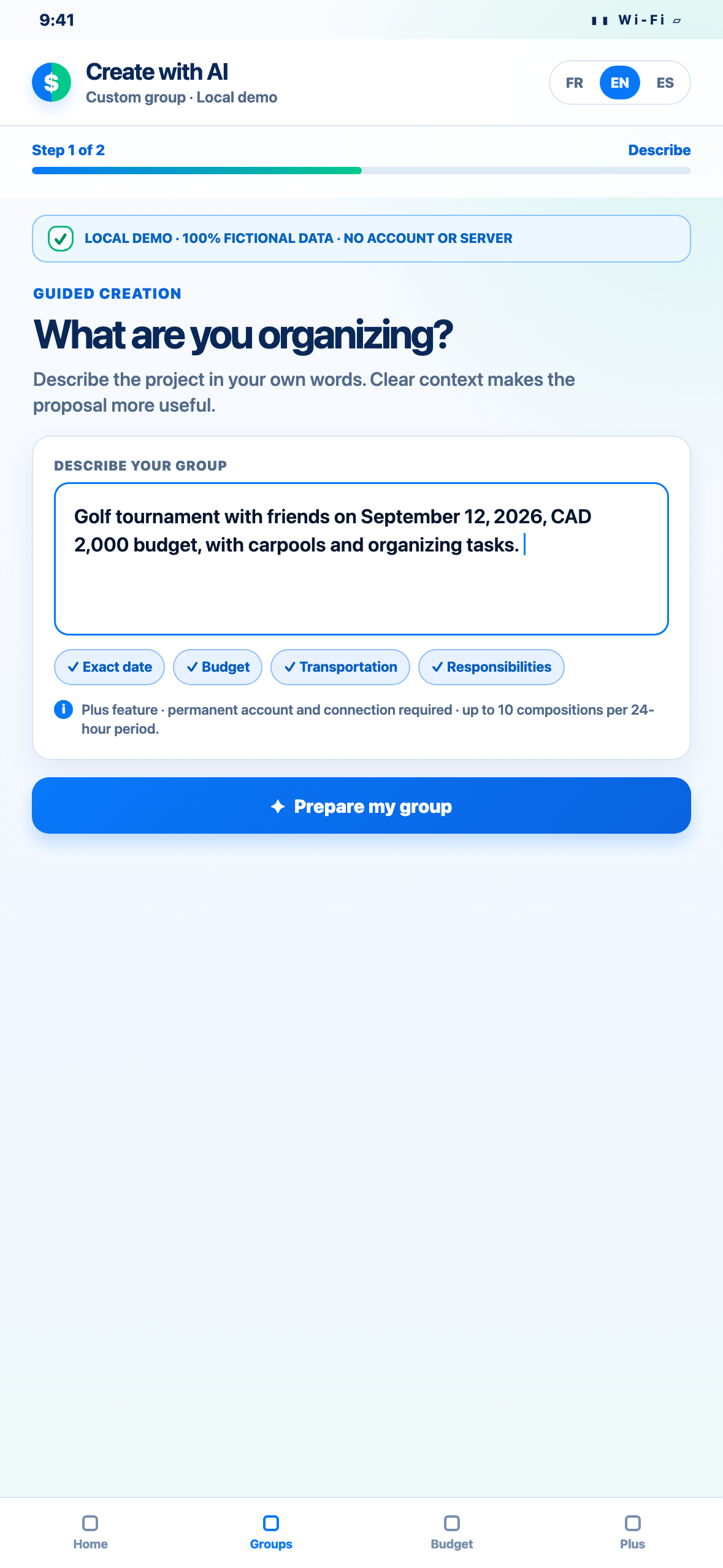
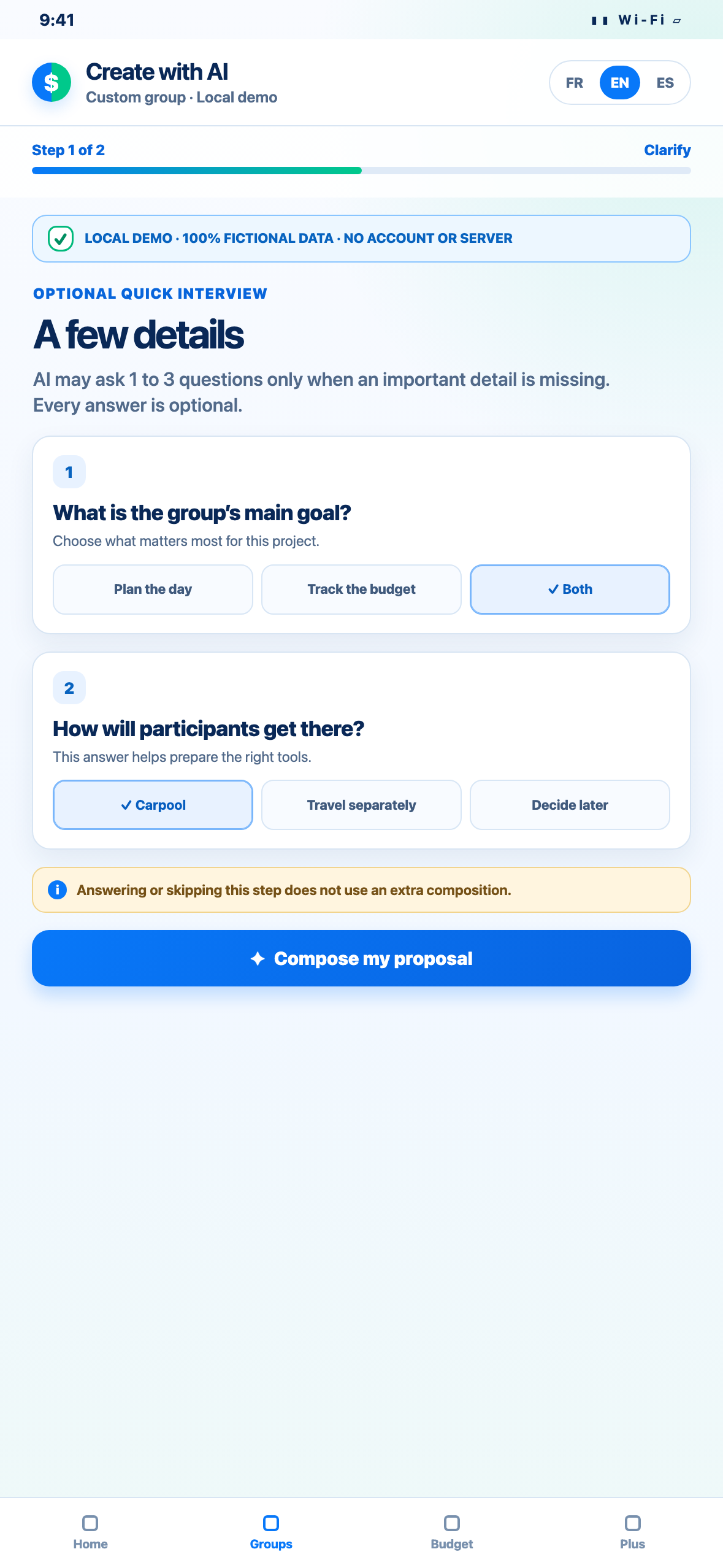
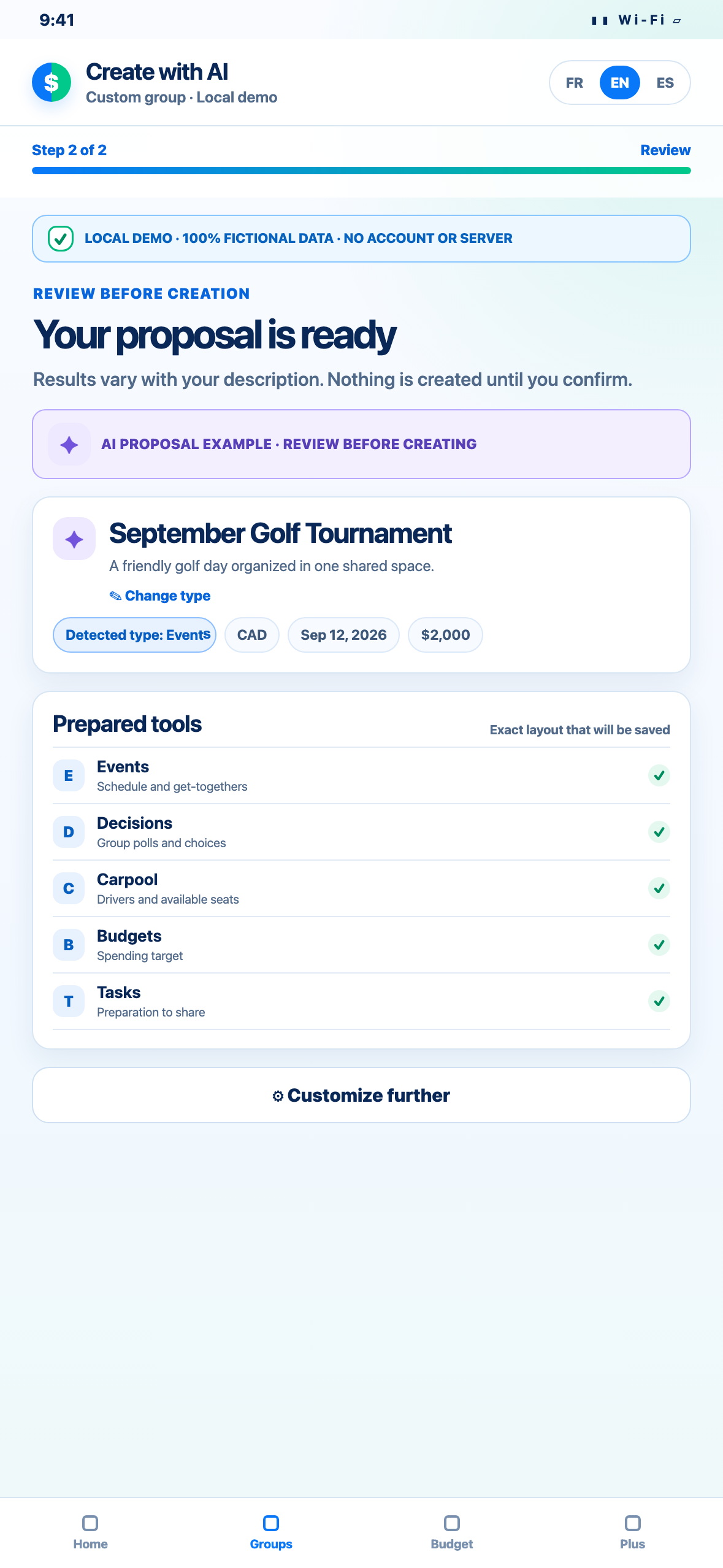
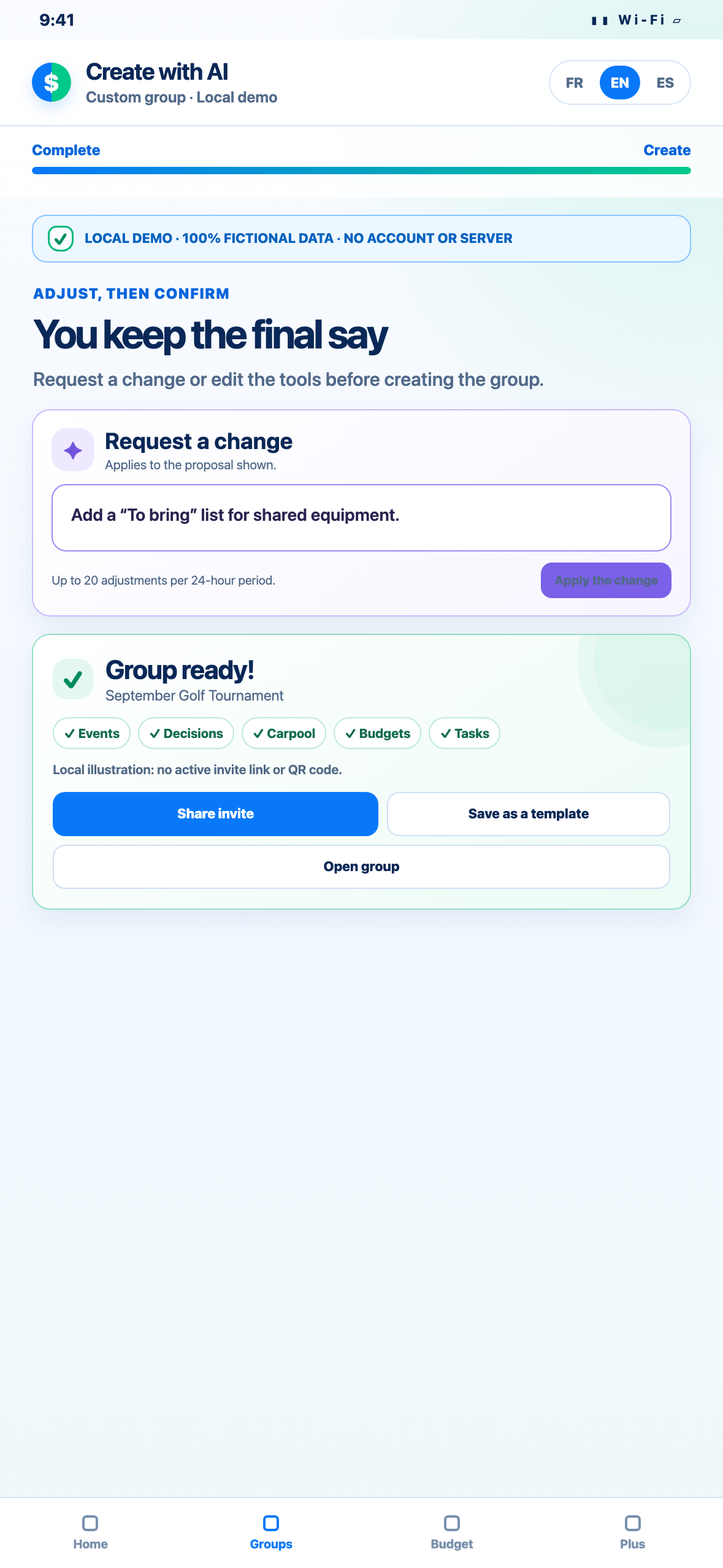
A fictional golf tournament with friends is described with its date, budget, carpools and organizing responsibilities. PartaBill shows optional clarification questions, then an example proposal with the closest supported type, relevant tools, lists and starter tasks. The organizer reviews and adjusts everything, confirms creation and can save the structure as a template. Nobody is invited and no payment is made automatically.
Annotated screenshots
The 20-second answer
Open Create group, choose Create with AI, and describe what the group must organize. Include the people involved, timing, budget, recurring needs, shared items and important constraints. PartaBill may ask one to three optional questions, then prepares a proposal with a name, a supported base type, dates, tools, lists, tasks, a budget target or a shared fund when relevant.
The proposal is not the group yet. Review the detected type, remove irrelevant content, correct every date and amount, and request an adjustment if needed. Only Create this group saves it. Invitations remain a separate action that you control.
This guide’s screenshots and video use a fictional golf tournament. They were produced locally without a real account, member, invitation link or personal information.
What “Create with AI” actually creates
PartaBill’s custom-group composer turns one natural-language description into a structured starting point. It can propose the group name and description, choose the closest supported base, suggest dates and a budget, prepare as many as three initial lists, add starter tasks, select integrated PartaBill tools and draft a short welcome note. You can also choose the currency and card colour during review.
It does not invent a new application or guarantee that every suggestion is correct. It does not invite people, book a venue, reserve accommodation, buy supplies, move money or make legal, medical or safety decisions. It assembles existing PartaBill tools and, when no built-in tool fits a central need, may propose a simple custom tracker. The result remains an editable draft until you confirm it.
This distinction matters because “create a group with AI” can also mean creating a group chat or randomly assigning people to teams. Here, it means creating a private PartaBill workspace for coordination and shared expenses.
Access and exact limits
AI composition is a PartaBill Plus feature. Manual group creation remains available without Plus. A permanent signed-in account and an Internet connection are required for composition and AI adjustments.
| Item | Limit verified August 14, 2026 |
|---|---|
| Initial description | 500 characters |
| AI compositions | Up to 10 in a rolling 24-hour period per user |
| Clarification interview | 1 to 3 optional questions; submitting the answers remains part of the same composition |
| AI adjustment instruction | 300 characters |
| AI adjustments | Up to 20 in a rolling 24-hour period, separate from compositions |
| Lists in the initial AI proposal | Up to 3 |
| Starter items in each proposed list | Up to 40 |
| Starter tasks | Up to 20 |
| Integrated tools | Up to 10 compatible PartaBill tools |
| Custom trackers | Up to 2, with no more than 6 fields each |
| Saved group name and description | 40 and 120 characters respectively |
| Offline composition | Not available; manual preparation is the fallback |
The current Canadian reference for annual Plus is CAD $9.99 per year, with a seven-day trial when eligible. The price, currency and taxes shown by Apple or Google at purchase apply; see the current terms.
The nine bases the AI can detect
The composer currently selects the closest of nine supported bases. The base determines default labels, icons, lists and contextual modules; it does not lock the group forever. Always check the detected type before creation.
| Supported base | A description that may fit |
|---|---|
| Trip | A weekend cabin, city break or international trip with dates and shared costs |
| Bike touring | A multi-day cycling outing with stages, routes, lodging and luggage |
| Home | Roommates coordinating rent, bills, groceries and chores |
| Couple | Two people managing shared purchases, subscriptions and plans |
| Events | A recurring dinner, tournament, fundraiser or neighbourhood activity |
| Family | A household calendar, groceries, recurring responsibilities and expenses |
| Project | A renovation, community garden, production or volunteer initiative |
| Wedding | Guests, vendors, instalments, seating, schedule, gifts and budget |
| Other | A club, team or uncommon project that does not match a more specific base |
“Other” makes the workflow flexible, but it does not mean unlimited or magically compatible with every possible process. The Shows preset is not one of the nine bases generated by this AI workflow. If another dedicated preset is offered in your version of PartaBill, create it manually; otherwise use Other and verify each proposed tool.
Write a prompt that produces a useful proposal
The strongest description answers six questions: what is happening, who collaborates, when it happens, what money is involved, what must be coordinated and what constraint cannot be missed. Use concrete facts instead of asking the AI to “organize everything.”
Copy and adapt this pattern:
We are organizing [project] for [people or approximate group size], from [start] to [end], in [place]. Our target budget is [amount and currency]. We need to coordinate [lists, tasks, events, documents or transport]. Important constraints: [accessibility, responsibility, timing or items to exclude].
For example: “Community garden for 12 neighbours from May 2 to October 18 in Ottawa, CAD $1,800 budget. Track materials, shared tools, watering shifts, workshops and reimbursements. Keep personal contact details out of the group.” That description gives the composer useful structure without naming real neighbours or disclosing private data.
Do not cram the prompt with every future expense or person. The proposal is a framework, and members can add real content after the group exists. If a fact is uncertain, say so: “date to confirm” is safer than a guessed deadline.
The complete workflow
1. Start from the AI option
In PartaBill, open group creation and choose Create with AI. If you do not have an active Plus entitlement, the app keeps the draft available while it opens the Plus screen. You can still return to manual creation instead.
2. Describe the real organizational need
Use the prompt pattern above and stay within 500 characters. Mention a budget only when it is a real target. Say whether the project has fixed dates, several distinct meetings, recurring bills, items to claim or responsibilities to assign. These signals help the composer choose relevant tools instead of filling the group with generic lists.
3. Answer or skip the optional questions
When a major ambiguity remains, PartaBill may ask one to three short questions with quick choices and, where useful, a free-text answer. Every answer is optional. Answering and submitting them does not consume a second composition; the interview and resulting proposal use one place in the ten-composition allowance.
If the initial description is already clear, no interview may appear. Do not add sensitive information simply because a free-text field is available.
4. Check the detected base first
The proposal displays its detected type. Confirm that a cycling trip is Bike touring rather than Trip, a shared home is Home rather than Family, and an unusual club is Other rather than Events. Changing the base can change the recommended tools and labels, so make this correction before fine-tuning individual items.
5. Review the essentials
Read the proposed name and description as if every future member will see them. Confirm the dates, main currency and budget target. A Trip or Bike touring group requires both a start and an end date before creation. Other dated groups require a start date when dates remain enabled. If the budget is enabled, it must be greater than zero.
A budget target is a planning reference, not money reserved in an account. A shared fund is an internal accounting profile, not a bank account. PartaBill records balances but does not hold or transfer money.
6. Inspect every tool, list and task
The review shows the exact layout that will be saved. Expand each list, remove irrelevant starter items and keep only tasks that someone can understand and complete. Confirm quantities and responsibilities rather than trusting plausible wording.
You can add, hide or reorder integrated tools in the editor. Dates, budgets, a shared fund, recurring expenses and the welcome note each have their own control. The AI may initially propose up to three lists, but the group editor supports a broader catalogue; the overall ceiling is 20 group-list tools. More content is not automatically a better setup.
7. Request a focused adjustment
Use Request a change for one clear instruction such as “Remove carpooling,” “Add a materials-return checklist,” or “Write the starter content in French.” The adjustment applies to the proposal as currently displayed, including your edits. It does not spend one of the ten composition slots, but it counts toward the separate limit of 20 adjustments per rolling 24 hours.
Review the result again. A new instruction can unintentionally affect related tools, and the AI does not know an agreement that was never included in the description.
8. Customize the final details
Open Customize further to edit the name, description, currency, dates, budget, fund, recurring-expense setting, welcome message and tool layout. You can exclude generated list items and starter tasks, but their wording is changed through Request a change before creation or edited inside the group afterward. Disable any section the group will not maintain. A clean group with four useful tools is better than a crowded one that members ignore.
9. Create, then invite deliberately
Choose Create this group only after the preview is accurate. PartaBill creates the owner and selected layout first, then prepares starter content. If part of that preparation cannot finish, the success screen can warn you to complete the missing elements in the group.
Creation does not notify anyone. From the success screen, add a cover if wanted, then share the invitation link or QR only with the intended people. Review member roles and group permissions after they join.
Save the structure as a reusable template
After a successful AI creation, you can save the group configuration as a personal template. The template keeps the reusable structure—base, tools, lists, tasks, budget settings and other selected options—but removes the absolute start and end dates. A future Trip therefore asks for new dates instead of silently reusing an old vacation.
Selecting a saved template does not consume another AI composition. You can review it, rename it, delete it or request an AI adjustment. Templates belong to the signed-in owner; they are not a public marketplace.
Protect information and review AI output
When you trigger composition, PartaBill sends the description securely to its servers and to Anthropic in the United States. The current PartaBill privacy policy says descriptions are used only to produce the requested result and are not used to train AI models.
That protection is not a reason to include unnecessary personal data. Describe roles instead of full names. Omit email addresses, phone numbers, passwords, access codes, bank details, passport numbers, medical information and private contract text. Add only the operational information members genuinely need after the group exists.
The Government of Canada’s generative AI guide recommends treating generated material as assistance rather than authority, protecting personal information and checking outputs for accuracy and bias. Canada’s privacy commissioners likewise emphasize necessity, consent, transparency and safeguards in their generative AI principles. For PartaBill, the practical rule is simple: the AI proposes; the owner remains responsible for what is saved and shared.
Common questions
Can AI create absolutely any kind of group?
It can compose many projects from nine supported bases and use Other as a flexible fallback. It cannot model every specialized workflow, and it does not generate the Shows base. Use manual creation when a dedicated preset or a simpler group is more appropriate.
Does the AI create the group immediately?
No. It first returns an editable proposal. Nothing is saved as a group until you choose Create this group.
Can I correct the detected type and tools?
Yes. Correct the type, edit the tool layout, disable sections, remove starter items and adjust the essential details before creation.
Does answering clarification questions cost another generation?
No. The optional interview and the proposal together count as one composition when the reserved interview is submitted normally.
What happens after I reach a daily limit?
Wait until enough requests fall outside the rolling 24-hour window, reuse a saved template or create the group manually. The support center reflects the current public feature rules.
Can I use AI creation offline?
No. Composition and AI adjustments require a connection. Manual planning is the safe fallback until the network returns.
Does AI invite members or spend money?
No. Invitations are explicit and separate. PartaBill does not book services, access a bank account or transfer funds.
What should I verify before inviting anyone?
Check the type, name, dates, currency, budget, list quantities, task wording, custom fields, member roles and every piece of information that others will see.
Create a useful first version
Open PartaBill, choose Create with AI, and describe one real project without personal or sensitive information. Keep the first version small, review it with one trusted collaborator, and invite the wider group only after the dates, responsibilities and tools match the plan.
Continue with the guide that matches the detected base:

About the author
Denis Turbide
creator of PartaBill
Revision history
- — Initial publication
Sources and verification
- PartaBill — complete feature catalogue Facts verified: August 14, 2026
- PartaBill — support center Facts verified: August 14, 2026
- PartaBill — terms and current Plus offer Facts verified: August 14, 2026
- PartaBill — privacy policy and AI features Facts verified: August 14, 2026
- Treasury Board of Canada Secretariat — guide on the use of generative AI Facts verified: August 14, 2026
- Office of the Privacy Commissioner of Canada — principles for generative AI Facts verified: August 14, 2026
Try PartaBill with your own group
Create a group, add an expense, and see what PartaBill can simplify for you.